

Showing posts with label Windows Xp. Show all posts
Showing posts with label Windows Xp. Show all posts
How to Fix the requested lookup key was not found in any active activation context error Solution/Solved

you will got this error when ever try to open any site popup box will appears “the requested lookup key was not found in any active activation context” on windows XP. The cause of this problem is a program Internet Explorer 7 so in this post I would suggest you to follow these steps and check if the issue is resolved.
Download MCS Drivers Disk 9.0.40.450 - x86/x64 (ENG/RUS/FR 2012) Full – automatically detects Free

MCS Drivers Disk 9.0.40.450 | 4.3GB
Microsoft Windows XP Professional SP3 Integrated March 2011 Corporate-BIE
 Microsoft Windows XP Professional SP3 Integrated March 2011 Corporate-BIE - 622.94 MB
 How To:
------
1 Extract Files
2 Burn Image to CD
3 Boot from CD
4 Install...
have fun!…
------
1 Extract Files
2 Burn Image to CD
3 Boot from CD
4 Install...
have fun!…
ShotScreen


Download – File Size: 622.94 MB
links has been deleted
How to Fix “Task Manager has been Disabled by Your Administrator”?
That's a very common problem for Windows users. Many times when you try to open Task Manager, you find that "Task Manager" option has been grayed out: “Task Manager has been disabled by your administrator.”

try one of these methods:
Method 1
Click Start, Run and type this command exactly as given below: (better - Copy and paste)
Method 2
Method 3
- Navigate to the following branch:
- Close Regedit.exe
1-Download this tool - Double-click
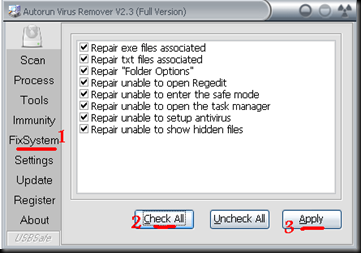
2-Run AutorunRemover

try one of these methods:
Method 1
Click Start, Run and type this command exactly as given below: (better - Copy and paste)
Method 2
-------------
Download and run this REG fix and double-click it. Method 3
-------------
- Click Start, Run and type Regedit.exe- Navigate to the following branch:
HKEY_CURRENT_USER \ Software \ Microsoft \ Windows \ CurrentVersion \ Policies\ System
- In the right-pane, delete the value named DisableTaskMgr- Close Regedit.exe
-------------
Method 4: Using Group Policy Editor - for Windows XP Professional- Click Start, Run, type gpedit.msc and click OK.
- Navigate to this branch:
User Configuration / Administrative Templates / System / Ctrl+Alt+Delete Options / Remove Task Manager
- Double-click the Remove Task Manager option.
- Set the policy to Not Configured.
1-Download this tool - Double-click
2-Run AutorunRemover


Subscribe to:
Posts
(
Atom
)
 Subscribe in a reader